It took me a while to get this iPhone review up, since I was busy driving back to the Apple Store and exchanging my new, slightly-defective iPhone for another.
Although I was super eager to explore my new gadget and write up an iPhone review, the iPhone I originally purchased had something loose in the USB port that brought it out of charge mode with even the slightest movement of the USB cable, so I was forced to return it.
I was the first person to go back to the store to report an iPhone-related problem, they told me, so the issue is most likely a rare one.
I’m not going to lie, though: the hassle of going back to the Apple Store was almost worth the thrill of unboxing two shiny new iPhones yesterday.
Click on images in my iPhone review to see them full-size.
Hello.
The iPhone and I first meet in the Apple Store in Miami, Florida at 6:30pm. A friendly Apple Store employee introduces us:
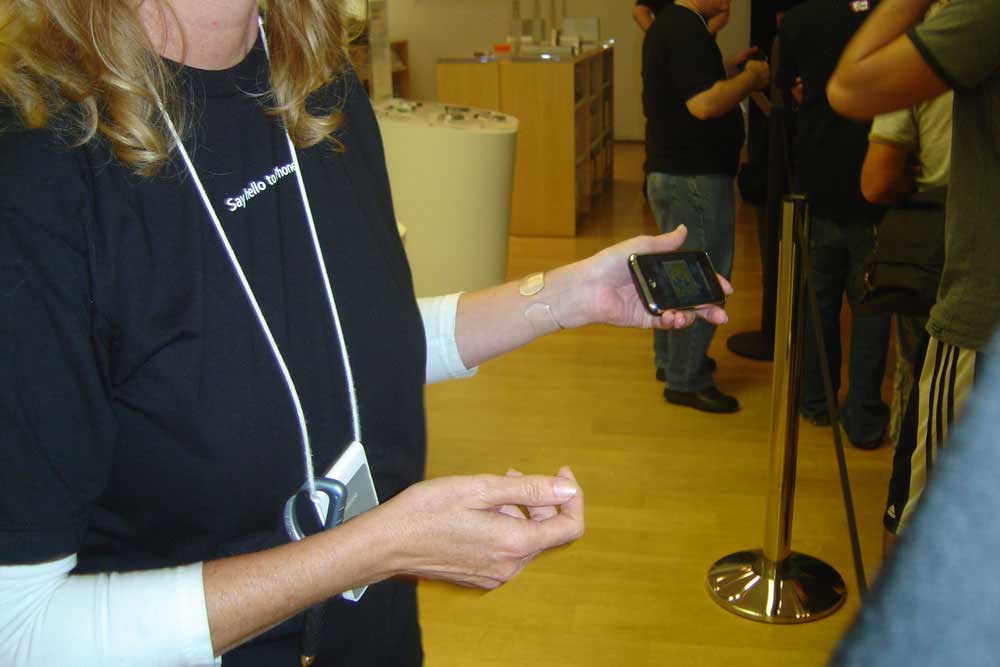
I purchased the iPhone for a total of $640.93, including sales tax.
iPhone Review & Unboxing

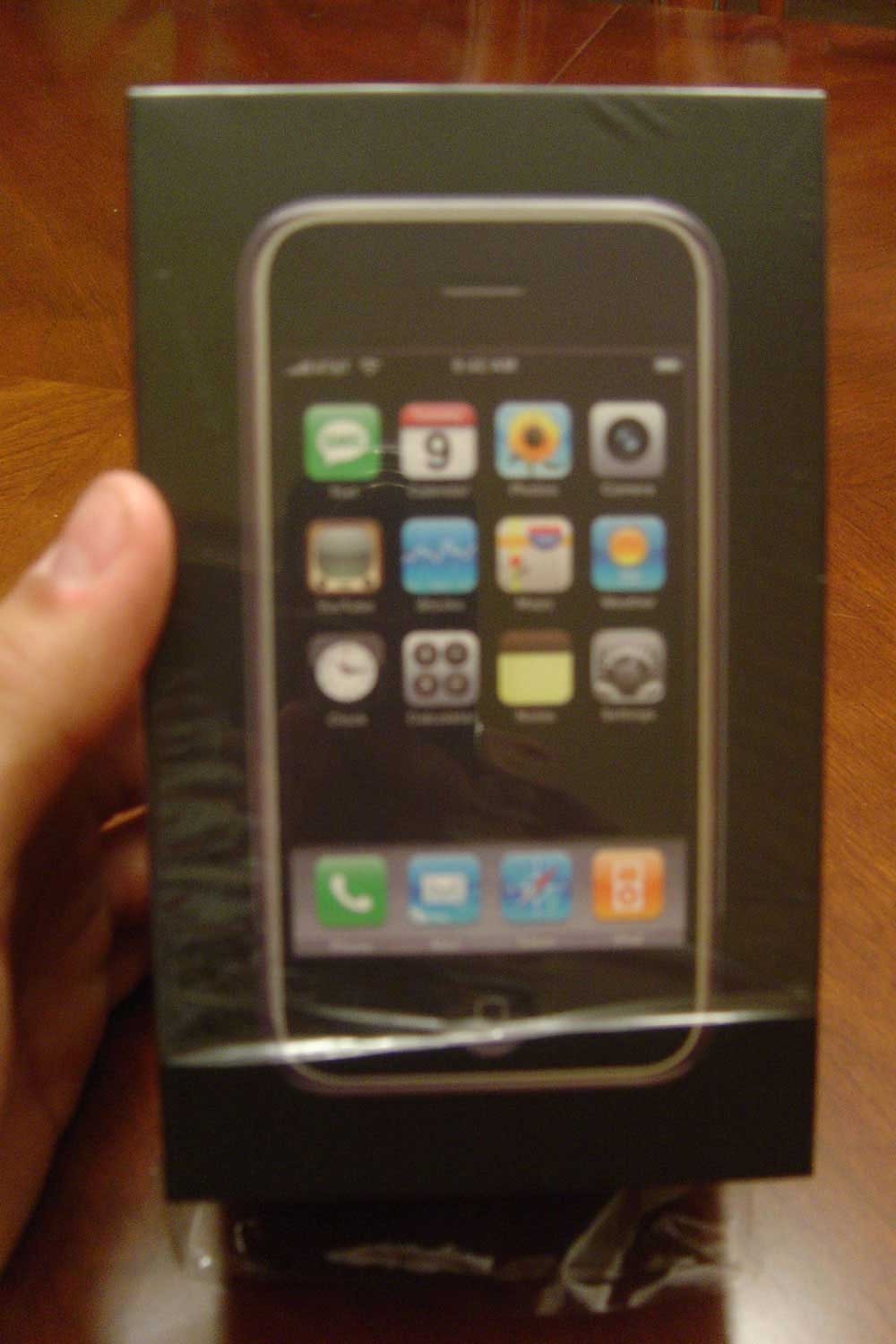
iPhone in Box

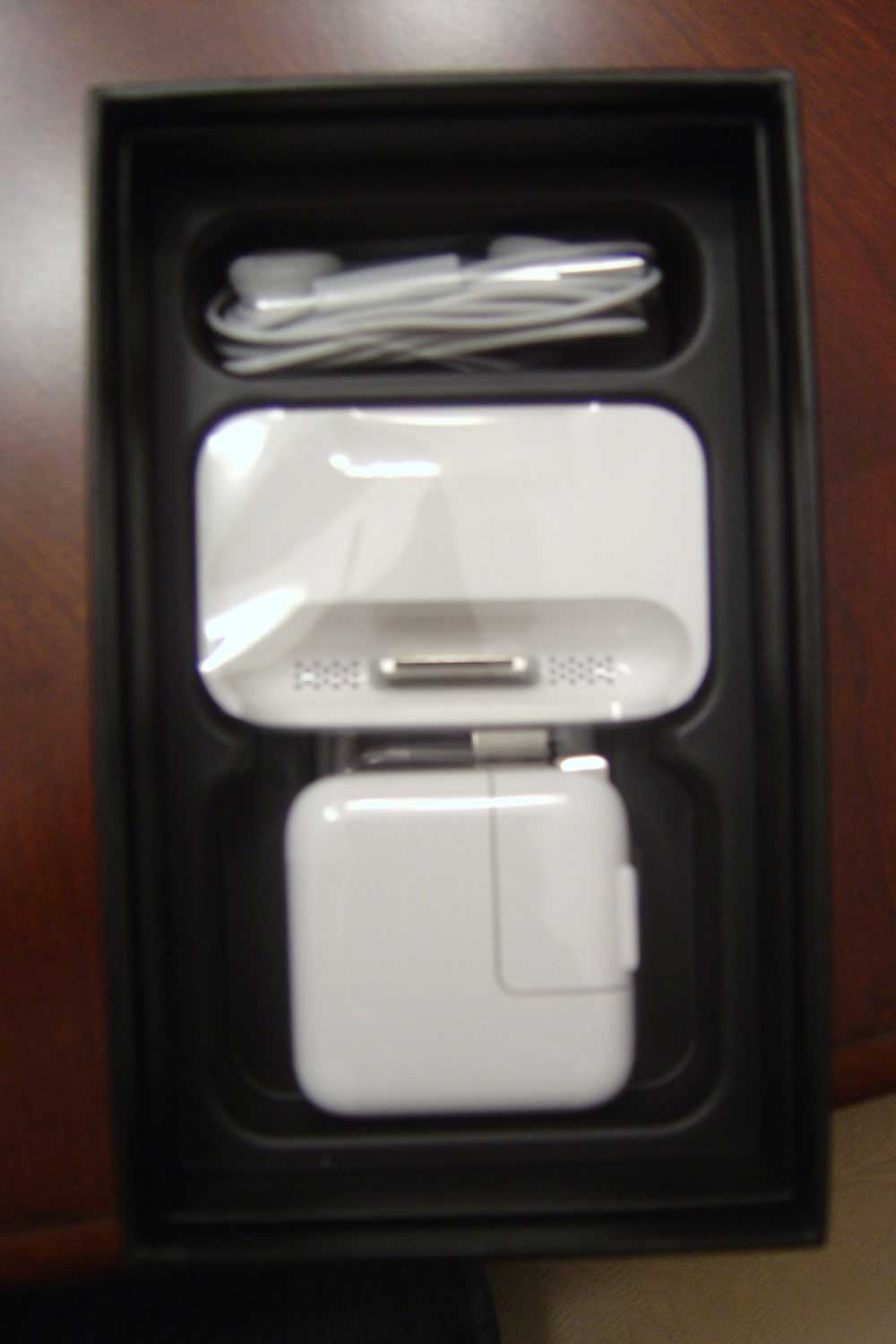
iPhone Box Contents
All the contents of the iPhone package fit nice and snugly inside the box.
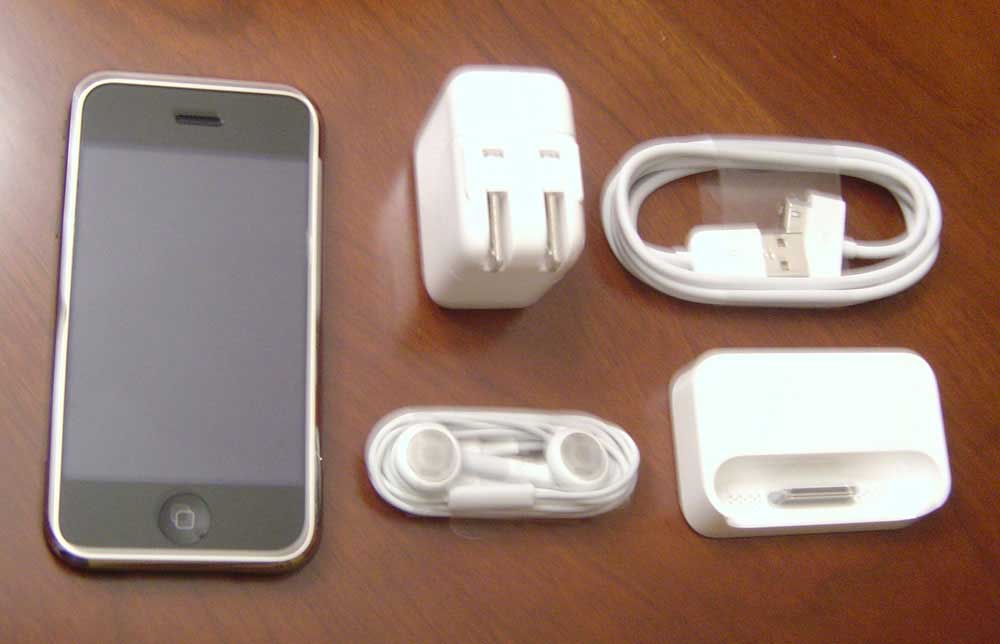
iPhone & Included Accessories
The iPhone comes with a charging dock, a USB cable, an outlet charger and a pair of headphones with built-in microphone.
Starting Up iPhone
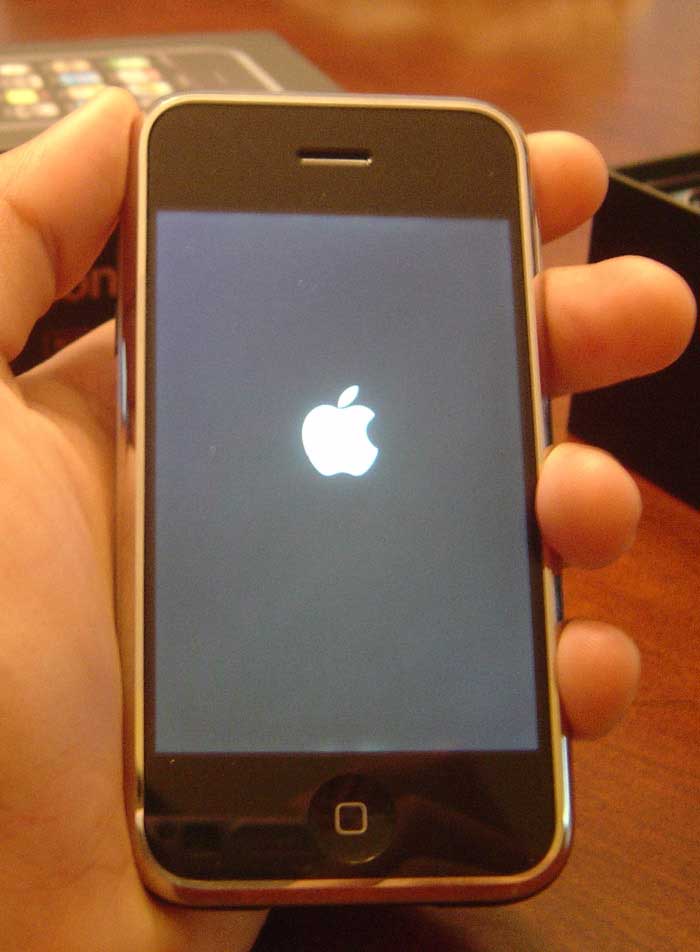
Upon activating the iPhone, a futuristic-looking Apple logo appears on the screen. The iPhone is now powered on.
There’s no denying it: the Apple iPhone is fun. It packs all your favorite widgets in one super-portable device, and it’s got some great functionality — most notably: the iPhone’s multi-touch screen, an accelerometer, and an on-screen keyboard. But the iPhone is not without flaws.
Continue reading my iPhone review for a full breakdown of the iPhone’s features, its downsides, and what you might expect if & when you get your own Apple iPhone.
Also in my iPhone review: I’ve addressed the questions you asked about the iPhone (see underlined sentences in the review).
Getting Started
Press the power button atop the iPhone and in precisely 16 seconds you’ll be at the home screen, where you can choose from 16 icons, each of which opens up a powerful widget.
1. iPhone SMS Text Messaging
The iPhone’s text widget is as seamless as you’d expect it to be. It lets you track conversations with any given person, separating her words and yours by silver and green speech bubbles.
So instead of clicking into and out of your text inbox and outbox and trying to remember the sequence of your conversations, iPhone’s SMS app shows all the text messages between you and a particular person at once, on the same page. All you have to do is flick through it.
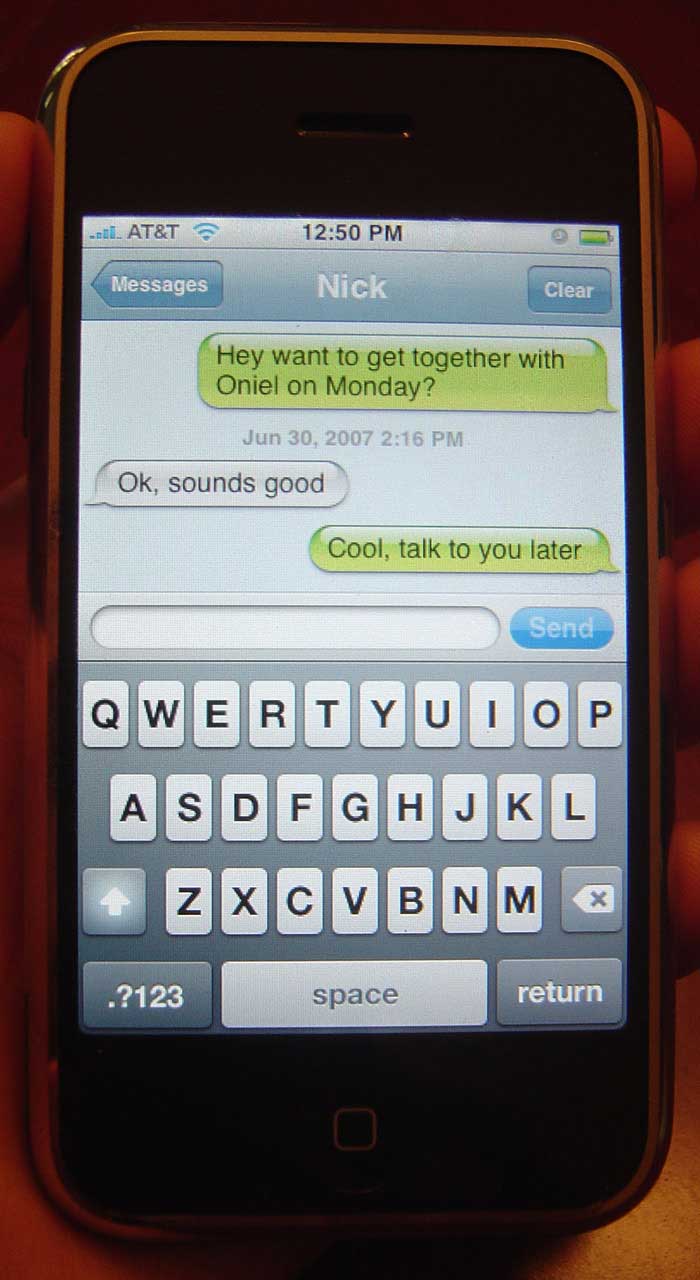
iPhone’s SMS tool makes it seem obvious that that’s how SMS text messaging should be.
So what about the on-screen keyboard? I’m with Walt Mossberg on this one. iPhone’s keyboard at first makes you feel like giving up. The keys are small and the spell correction doesn’t always guess the word you had in mind – though it’s pretty accurate nevertheless, and you can probably expect it to become smarter in time, reducing errors caused by mistaps.
As you touch the virtual keys, the letters become magnified. If you see when a key is magnified that you tapped the wrong one, you can slide your finger (without lifting it) over to the correct key and let go of it to select it.
As I use the keyboard more, I find myself making less mistakes. If Mossberg is correct, I’ll be typing away like a pro in 5 days.
One downside for me about iPhone’s keyboard in the SMS widget is that it cannot be used in landscape mode. This is the case for most of the widgets that use the on-screen keyboard, except for the Safari browser (see point #15).
Another bummer about iPhone’s SMS app is the lack of a copy/paste feature. If you enter text in the wrong field by accident, for example, you can’t move it over to another field. Your only option is to rewrite it.
At first, I had some trouble figuring out how to move the blinking cursor in between letters in order to correct typos.
For example, say you spell thanks ‘thnks’ by accident, how do you move the blinking cursor in between the ‘h’ and the ‘n’ to insert an ‘a’?
Then I realized that if you tap and hold the word you’d like to correct, a magnifying glass appears, letting you move to the desired letter within the word. Pretty cool.
A potential privacy issue with iPhone’s SMS text messaging feature: when you receive a text message, no matter what you’re doing on the iPhone, the name of the sender pops up on the screen, along with their message. To my knowledge, there’s no way to keep the content of incoming text messages tucked away.
This was a bad idea on Apple’s part. Imagine you’re showing off your iPhone to a group of people — if you’re an early adopter, it’s gonna happen a lot, I promise — or someone else is navigating with Google Maps while you drive, and you receive a text message about something you’d rather be kept private. It will show up on the display.
Some messages you just don’t want people seeing, which is why Apple needs to allow the option to keep text messages where they belong… in the SMS app. (Update: Here is a workaround I discovered.)
2. iPhone Calendar
The iPhone calendar lets you organize your schedule by month and by day, to the hour. Just tap the day or hour you wish to work with and tweak preferences like titles, locations, start and end times and alert settings for each event.
Setting times of the day is easy and fun; just flick two slot machine-style wheels to your desired hour and minute.
You can also view a list of just your upcoming events, instead of a full calendar. The iPhone lacks a Tasks or To-Do list feature, but the calendar can sort of make up for it.
3. iPhone Photos
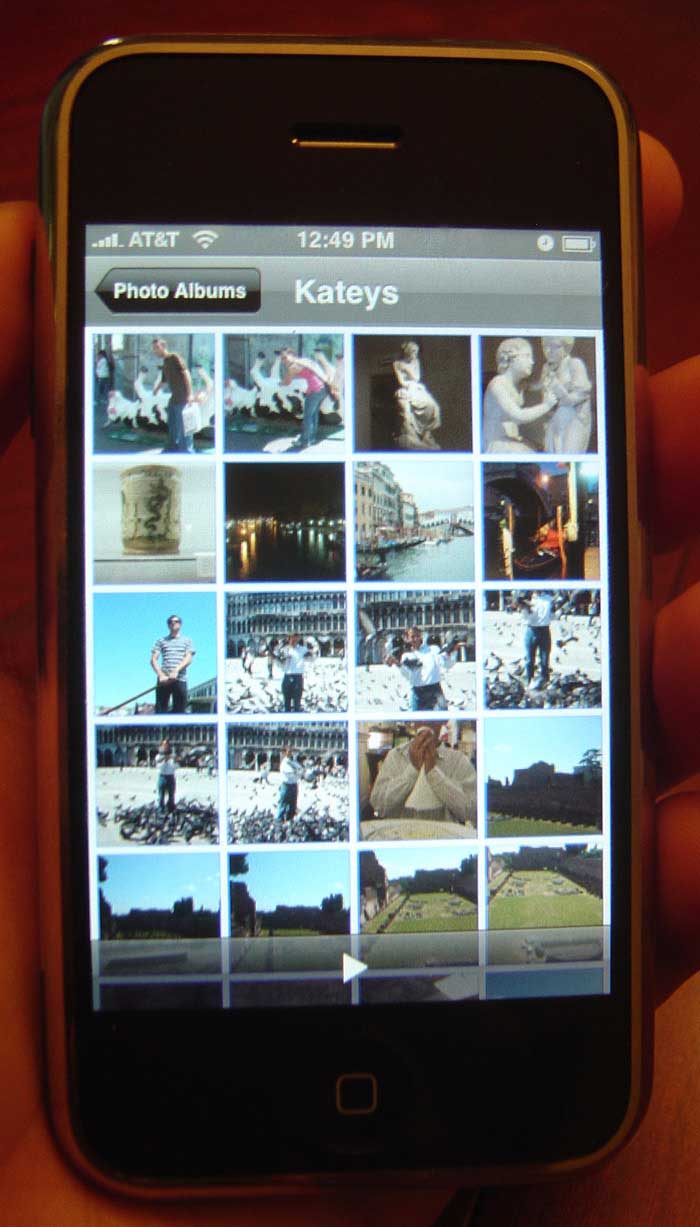
Tapping the Photos icon takes you to your Photo Albums page, where you can view a Camera Roll (all saved pictures that you’ve snapped from your iPhone camera) and any other albums that you’ve synced through iTunes.
You can scroll through albums, thumbnails and individual photos. The iPhone is very responsive to screen flicks when in the Photos app. You can flick through hundreds of photos pretty quickly if you want to, without any problems.
The multi-touch zoom works well, but it’s best if you use the tips of your fingers. At times placing my fingers flat yielded little response. But I imagine this, too, is a matter of getting used to.
4. iPhone Camera
For dedicated photographers, the iPhone’s camera leaves much to be desired, but the average user will find the photo quality more than acceptable in well-lit situations.
One problem with the iPhone camera is its slight lag time, which several times throughout my iPhone testing and review resulted in blurry photos. Upon taking a photo, you hear a “snap” sound. If the person being photographed moves away too shortly after the “snap” sound, the picture may appear blurry (of course, the more ambient light, the less likely it is that this will happen).
Another disappointment for me about the iPhone camera is its lack of a zoom feature. Most basic camera phones have a zoom feature. Why doesn’t the iPhone? If you want to get a closeup of someone, the only way to do it is to move close up.
5. YouTube on iPhone
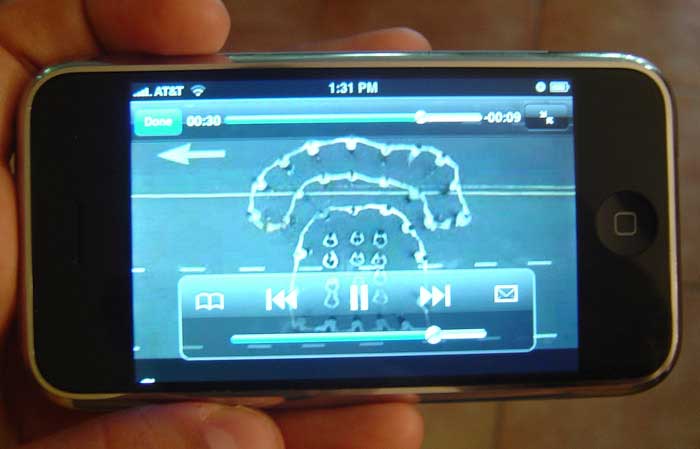
YouTube on iPhone is straightforward and simple. It’s basically a list of videos with thumbnails, beneath which there are icons to view featured videos, most viewed videos, bookmarks, video search and more.
One thing lacking is the ability to comment on YouTube videos with the iPhone.
A note about EDGE: streaming videos via AT&T’s EDGE network IS possible, and it’s now FAST, too. AT&T reportedly upgraded its EDGE network right before the iPhone release, and users have been reporting much faster download speeds.
I can confirm that. Loading a 5 and a half minute YouTube video takes just under 10 seconds, and it streams continuously. I’m so happy with the new speed of the EDGE network that I could care less about 3G! (Update: This is no longer the case for me. In fact, EDGE can be rather slow at times. I think it may depend on the area you live in.)
iPhone does not have a video camera, so you can’t record videos straight from your phone and post them on YouTube like some people had hoped. This isn’t necessarily a bad thing; imagine the flood of low-quality, low-resolution videos that would permeate YouTube if iPhone’s run-of-the-mill camera recorded video.
(Update: I’ve changed my mind. Read why I think the iPhone should have a video camera.)
6. iPhone Stocks widget
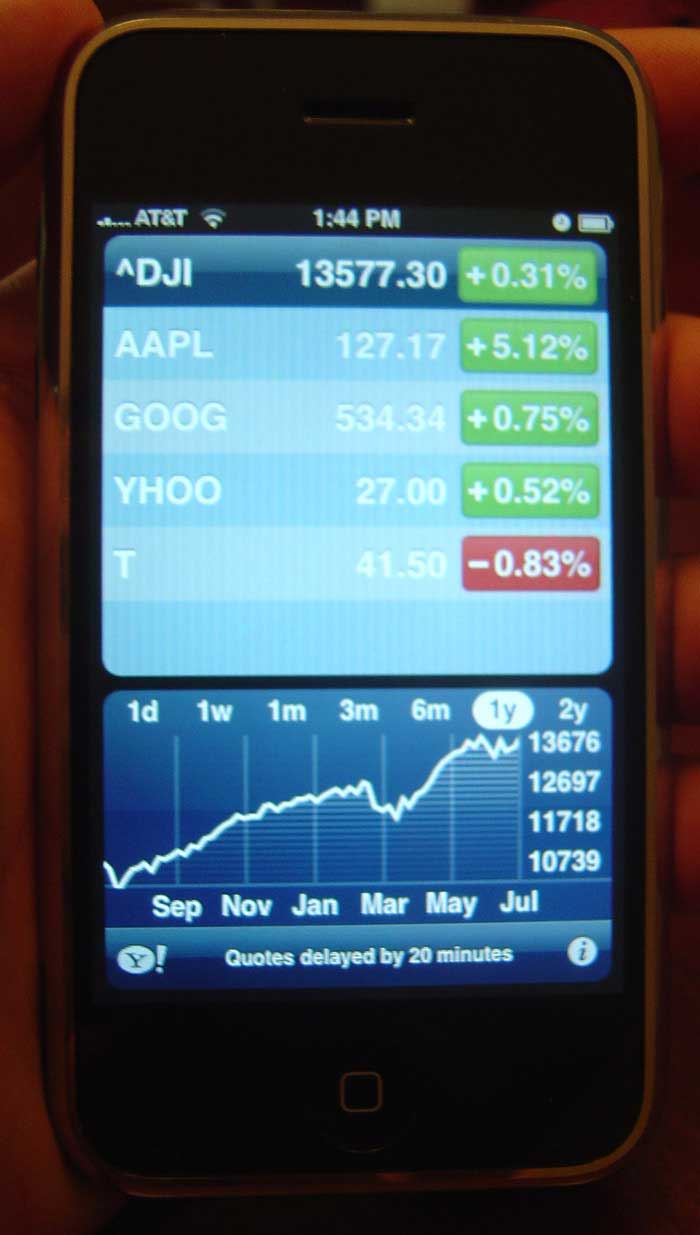
The iPhone’s Stocks app is pretty basic. You can enter a stock symbol and view its progress on a graph in 1-day, 1-week, 1-month, 3-month, 6-month, 1-year or 2-year intervals.
There’s not much more to it. I like the usability of the Stocks app, because it doesn’t require more steps than are necessary, unlike the Phone app, in my opinion. Scroll down to point #13 to see what I mean.
In my opinion, the Stocks app wins the simplicity award, of all the apps I cover in my iPhone review.
7. Google Maps on iPhone
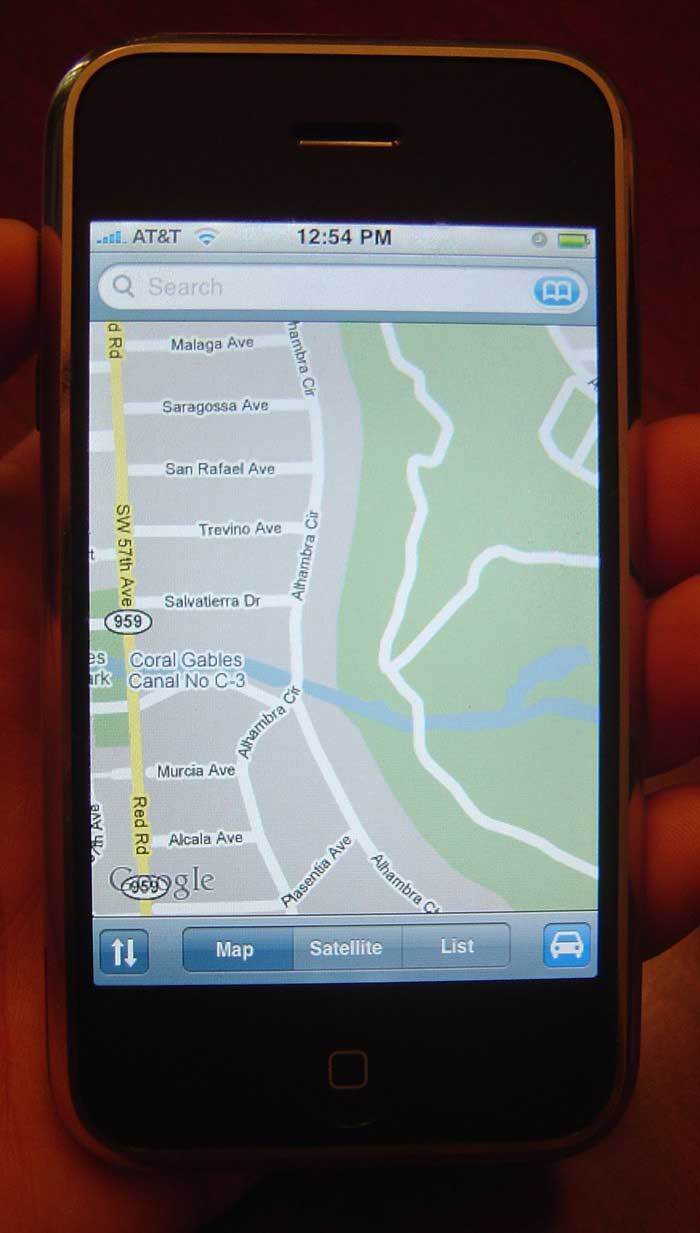
Google Maps on the iPhone works great. Search for any location in the world and find street-by-street directions. You can view maps in Satellite mode, which will literally show you the streets you’re driving on, and when and where to make turns.
Alternatively, you can choose to view a MapQuest-style numbered list of text directions.
As expected, the iPhone does not have GPS. It cannot detect where you are. It simply looks up maps and tells you how to get from place to place.
8. iPhone Weather
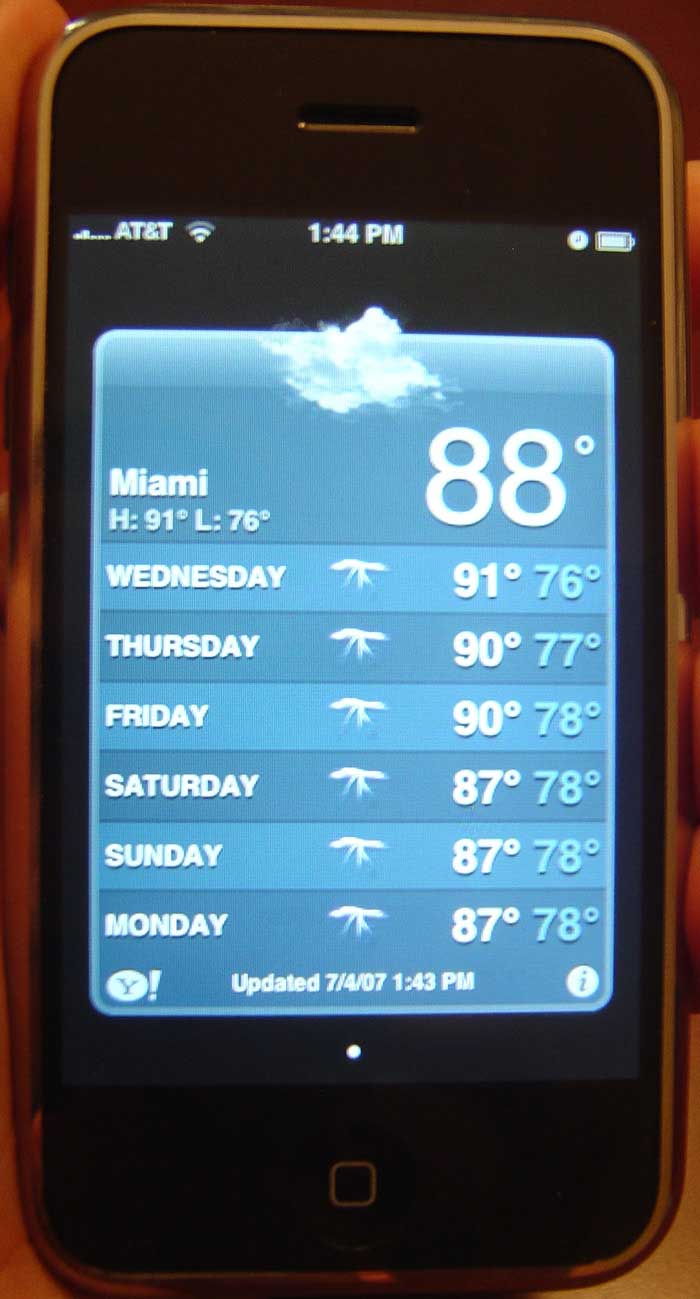
The iPhone’s Weather widget, which is powered by Yahoo!, is just what you’d expect. You can program different cities into your iPhone and flick through pages detailing the highs and lows of your favorite cities over a week’s time.
An image of a cloud lets you know the conditions on any given day (sunny, partly cloudy, thunderstorms, etc.). And you can program the widget to show either Fahrenheit or Celsius temperatures. Pretty simple and straightforward.
9, 10 & 11. iPhone Clock, Calculator and Notes

The iPhone’s World Clock displays the local times in cities of your choice. You can add and delete cities, and drag them around to re-order your list.
The clock widget also features an alarm, a stopwatch and a timer that alerts you with your ringtone of choice.
I love the alarm clock’s ability to program and save different alarms, which you can configure to ring on whatever days of the week you want. The iPhone alarm clock also has a snooze feature.
The calculator on the iPhone is perfect. The number buttons and the display are well-sized, and Apple doesn’t add more buttons than it needs to, just your basic arithmetic functions.
iPhone’s Notes widget lets you write down thoughts and ideas, organized within the lines of a yellow notepad. Adding a new note is as simple as tapping the “+” sign and typing it into the keyboard.
New notes are labeled with the date and time when they are written. It’d be nice to have the option to change the dates of notes, though. That would make it more friendly for To-Do lists, since you could organize your schedule for upcoming days.
Alternatively, you can use the iPhone Calendar app to do this, as I mentioned before. But that can be limiting since To-Do lists aren’t necessarily events suited to a calendar.
12. iPhone Settings
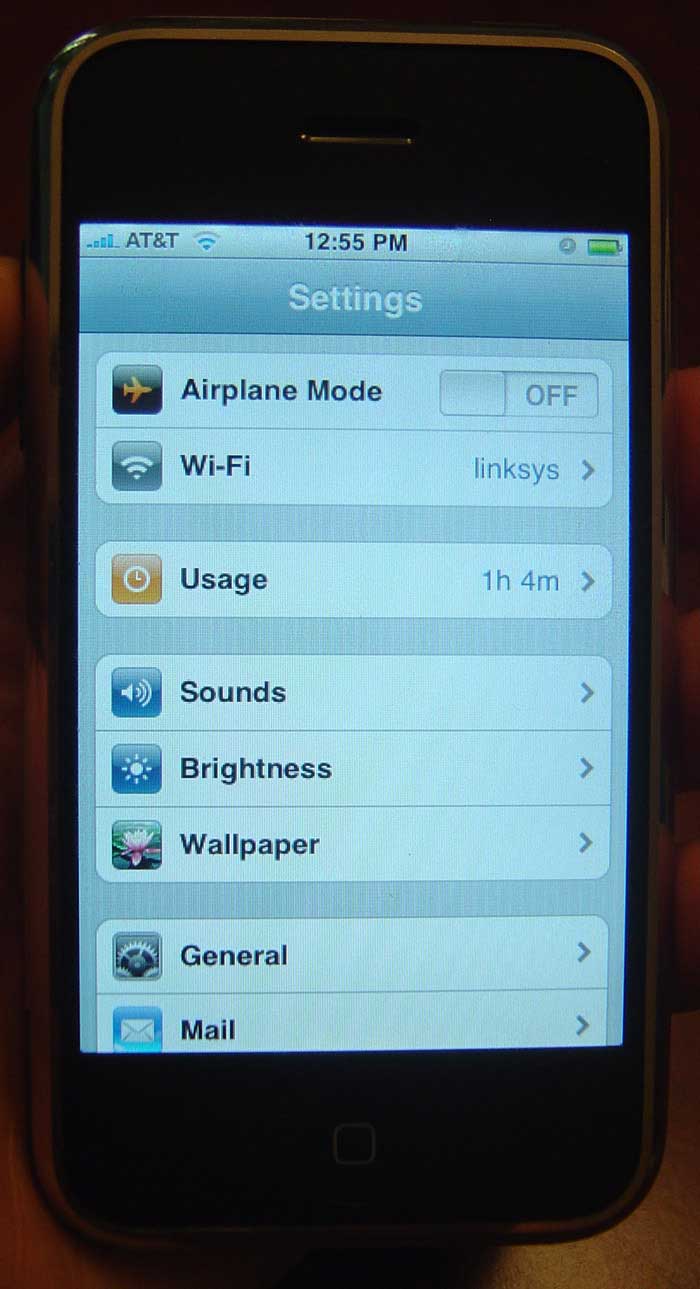
From the Settings page, you can adjust sounds and ringtones. Unfortunately, there’s no option to use songs you’ve purchased off iTunes as ringtones. Why not? I think if you pay for the song file, it should be yours to use as you please. Maybe Apple has a ringtones store in the works. (Update: Apple now lets you convert certain songs into ringtones for $0.99 via iTunes.)
If you put the iPhone on silent mode, you can choose whether to keep vibrate mode on or off. While other iPhone reviewers have said iPhone’s vibrate feature is weak, I think it vibrates just the right amount to be felt in a pocket, but not so much that it can be heard by other people. The vibration for text messages, however, is weak.
One thing I can’t figure out is how to set SMS text messages to vibrate mode while calls are on the ring setting. I’ll be disappointed if this option doesn’t exist on the iPhone.
In Settings, you can also adjust your wallpaper, Wi-Fi on/off, phone, Safari and iPod settings and more. It’s just a matter of tapping the setting you’d like to adjust and changing it.
13. The Phone

The iPhone’s phone aspect is great for organizing your contacts (you can sync them from your Yahoo!Mail or Windows Address Book), but in my opinion, the phone requires one-too-many steps to dial a number.
To call one of your friends, you must 1) tap the Phone icon on the home screen, 2) tap the Contacts button at the bottom, 3) tap the name of the person you want to call and 4) tap the number you want to dial.
It’s useful to have individual contact pages for each person, because you can organize phone numbers, home addresses, e-mail addresses and website addresses. But what if I just want to make a call?
Apple should add a small button next to each contact name that allows you to automatically dial that person’s primary phone number. That would allow you the option to not view the rest of the person’s contact info, so you can just make a call. Afterall, the iPhone should be a phone first, and then a sweet media player and organizer.
(Update: After an iPhone software update, you can now double tap the home button to reach your list of favorite contacts. Thanks for the shortcut, Apple.)
The sound clarity of phone calls is average and probably depends on AT&T’s coverage in your area. The volume is adjustable via the buttons on the left of the iPhone.
14. iPhone Mail
The Mail application lets you easily send and receive e-mails, provided that you configure your mail client for POP3 access. If you don’t want to do that, you can simply access your e-mail via the Safari browser.
iPhone’s Mail application can be configured to access numerous mailboxes (from Gmail, Yahoo! Mail, AOL, .Mac Mail and others). iPhone lists your inbox messages very elegantly, with unread messages displaying a blue dot next to them.
I sent an e-mail to my Gmail address from my laptop, and the message appeared in my iPhone inbox several seconds before it appeared on my laptop.
One major drawback of the Mail application is the lack of a mass edit feature. If you want to delete 20 messages, you’re going to have to delete them one-by-one.
Another disappointment is that PDF and Word documents cannot be viewed in landscape mode, since it’s difficult to read and maneuver through condensed text on the iPhone’s upright narrow screen. I couldn’t imagine getting through a full eBook on my iPhone.
(Update: PDF files can now be viewed in landscape mode.)
15. iPhone’s Safari Browser

The iPhone’s Safari browser renders websites almost as it would on the actual Safari browser (some page elements differ slightly), except for its lack of Java and Flash support. Because of AT&T’s EDGE upgrade, I had no problem loading pages quickly when in my car.
Safari loads websites much faster over a Wi-Fi network.
The iPhone’s browser is rotatable, so you can view pages in landscape mode. I like that the on-screen keyboard in the browser can be used in landscape mode as well, since it makes the keys larger and more accessible.
The graphics in the Safari browser are clear and pristine, as you’ve seen them on the iPhone ads. In fact, the iPhone display overall is very color-rich and high-resolution. iPhone’s Safari can also display Chinese fonts and those of other languages.
One feature I love in Safari is the ability to “Share” a web page with a friend via e-mail. This is very much in the spirit of Web 2.0.
You can’t connect a Bluetooth mouse to use within iPhone’s Safari, probably because there is no cursor.
16. iPhone’s iPod
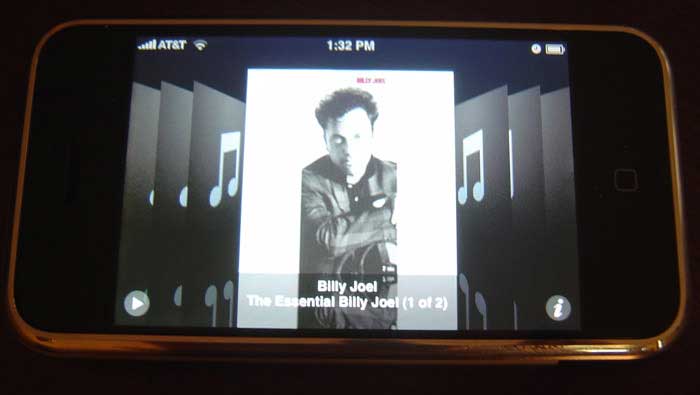
iPhone’s iPod really is the best iPod ever created. It’s easy to flick through albums, songs and videos. And Cover Flow feels like you’re actually sorting through real albums.
The iPod’s volume can be adjusted either with the hardware volume buttons or on the screen.
What I love most about the iPhone’s iPod is that if no headphones are plugged in, songs are played through the iPhone’s speaker, and they sound great! The iPhone speaker is audible enough to set down on the table and listen to with a small group of friends (indoors; outside it’s not so loud).
The iPhone syncs seamlessly with iTunes, but I’ve got to wonder why Apple didn’t integrate a “mini iTunes” on the iPhone for downloading music and video directly from the phone.
(Update: An iPhone software update upgraded the iPhone to include an iTunes Wi-Fi Music Store, around the same time the iPod Touch was released.)
*Bonus* – In Line @ the Apple Store
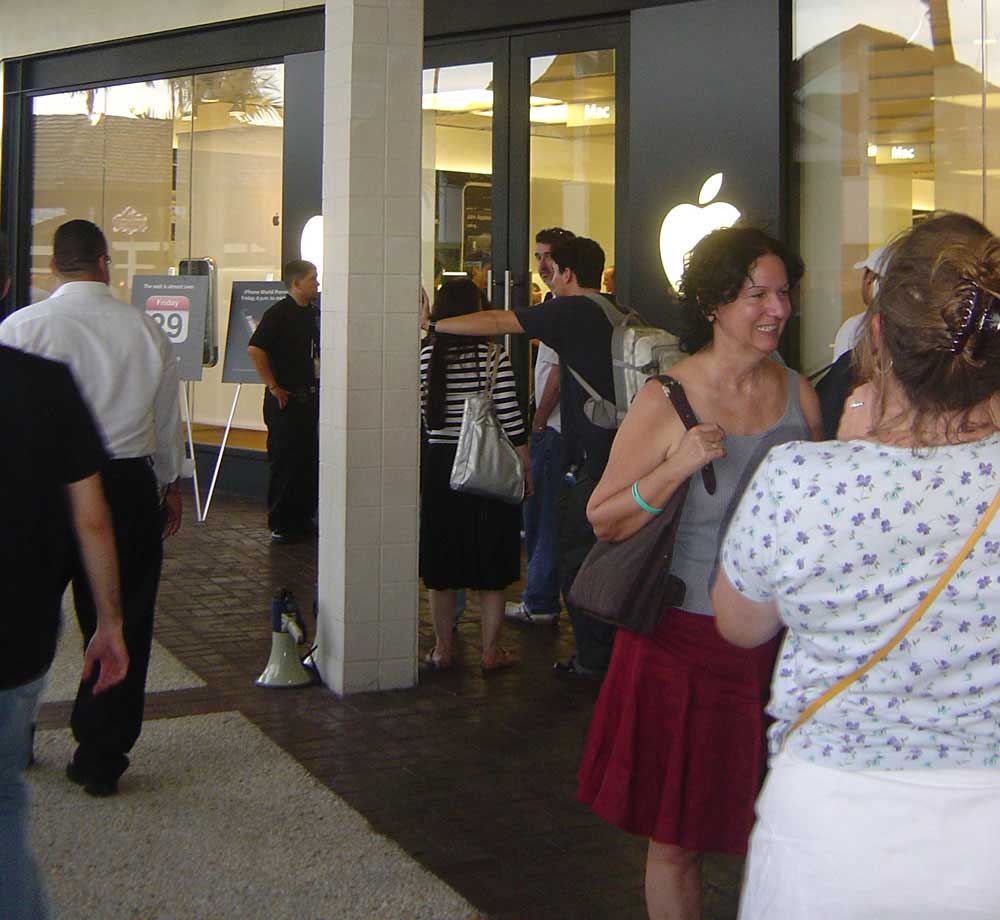
Crowds lined up in front of the Apple Store in Miami’s The Falls shopping plaza.

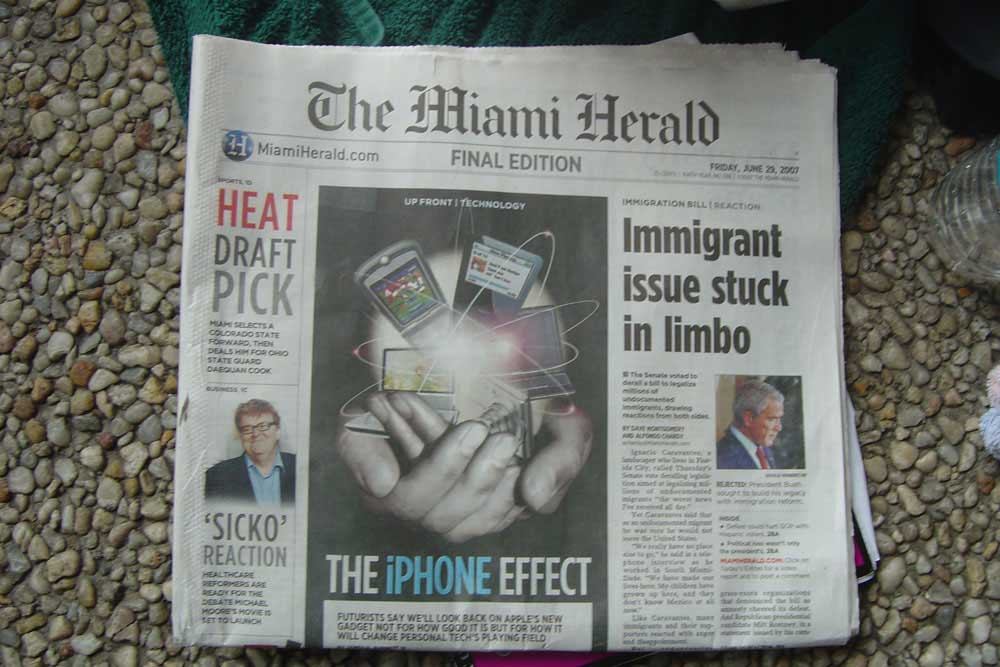
The Miami Herald published a front-page article on the iPhone headlined: “The iPhone Effect.”
If you found this iPhone review helpful, share it with someone you know.
For more on what’s wrong with the iPhone, read my article, “25 Things Wrong With the iPhone.”
What is Apps for loading keyboard for iphone
Most of the issues with the iphone 3G are solved with the iPhone 3GS. You can take video, cut copy or paste, it has a landscape keyboard and an autofocus camera.
I love the Apple iPhone but i’d want to use it on Sprint with 3G/Simm Card. If I can’t use iPhone on Sprint Network, that would be a deal breaker for me. I’m sorry I have to use AT&T as my work phone. To be honest AT&T network just SUCKS everywhere (on major roads etc as well as in boonies). AT&T drops consistently while Sprint goes on without a drop!
Hi, i really want to buy an iphone but i know very litte about them, i would be buying so i can just my music with me,the whole idea for carrying around lots of gargets is not cool.The phone looks really smart!!
kenya
so ive been reading all these comments an the iphone. here in australia its only just coming out as outright 8Gb for $799 and 16GB for $899. it seems so dear but even after reading quite consistent reviews i still feel obliged to buy a 16gb iphone… it really cant be that bad, can it?
nice
my iphone keeps showing me the itunes logo and usb cord and want let go into the phone
I’m selling UK Unlocked Iphone (EU)
Iphone 3G 16GB Black/White: USD$800.00 / RM2800.00
Iphone 3G 8GB Black/White: USD$750.00 / RM2625.00
All come with free shipping.
email me at amriah.buang@gmail.com
I live/study in Hampshire, United Kingdom.
mcy62547seadi4w4
ı think iphone is wery great phone . . .
how come i never get internet service anywhere…wtf!!!!!!!!!
i once had an iphone. I had numerous problems trying to get it to work and it never did. After having it for over a week i took it back to the store where they charged me for opening it! i totally dropped AT&T and cancelled all my numbers. Trust me do not get one. They are super cool but tons of problems.
j’aimerais savoir le prix du cable de iphone 8 et 16 go
this is to pjarick hi, i am from canada and was in florida for a week i bought an iphone wonderiing how i was going to use it in canada so asked a guy at a tmobile booth and he said i know a guy who can unlock your phone! yes it worked and for 50$ too not 170 50!!!! i love my iphone soo much and it has anything and eerything you expect from it also you get an installer app. that lets you dowload almost anthing like a fix for deleating individual call history and nintendo 64 all sorts of games FREE! so yes you CAN unlock your phone and i am currently on my exact plan that i used in canada (rogers) works unbelivable and i love it!
I dont know if you will get this but if you do i hope this was helpful and again it deffinaty works in diff. countrys the guy who unlocked it said he has seen it working in 20 different countries already so ya i hope this helps and if you get aiphone all i have to say is enjoy it man cuz it is the most amazing thing ever!!!
Im thinking about getting an IPhone, but need to know a few basic things first!
1. Can you personalise the phone with picture wallpapers etc?
2. Can you have a MP3 as a ringtone?
3. Does it have a protective case with it so that the screen does not get scratched in a bag?
4. Is it worth the money?
HI I WANNA KNOW THAT I PHONE HAVE CAMERA RECORDING 3G…. SIR COULD U PLZ SEND THE ALL INFORMETION ABOUT IPHONE ALL TECNICAL INFORMETION THXX U NAKUL (INDIA) N PLZ TELL ME WHEN I CAN SEE IPHONE IN INDIA
The iphone has a non working bluetooth device that can not connect to other mobile devices which is a big shame!
the housing is scratchproof from al l the videos i have seen 1 i seen of ppl putitng itin bags with keys and shit then it is still nice after they take it out. and those ppls who r power users / business ofcourse the iphone wasnt what u wanted maybe research a product first before u buy it that way it will save me having to read your cries later? do u go and buy every phone and and cry when its not what u imagined . . . or any product for that matter ? do you go and bu y a microwave and then return it to the store saying it doesnt keep me warm enough at night. and inbetween post on a board online that ur not happy with the product. dont just buy shit cos everyone else is, u will turn into a crack addict eventually.
im in ausTRALIA so no ihpone for us for a long time but nomatter what i read good or bad i still want this shit more and mores it is like heroin. ofcourse that sony phone / n95 is a nice phone but maybe try use a device before u make statements like I PHONE ISNT THAT GUD MY PHONE HAS THE SAME STUFF AND I OWN AN IPOD ANYWAYSSS.
like seriously it mkaes u look like shit n00b.
the way i tihnk of the iphone is every mbile (CELL) phone on the market prior to ihpone represented a stone tablet engraved with shit. but iphone is like a whiteboard u can simply start again so easily with it u know boy. maybe only limit inside is the storage eventaully or the processor speed eventually we we have internet V53. the peopel that rubbish iphone are very sad they have no vision. as if iphone is not capible of mms ,companies just wait for a while to release shit to make people whigne and talk then everyone is like WOO IHPONE MMS GO BUY 1, like what sony did early on with the psp and the inet browser no1 really gave a shit if it had one or not but it was kind of hoped for cos it had wifi.
sorry for having a bitch but its cheaper than paying a hooker $50 a session to do the same thing.
cheers iphone rejoice
AC myspace.com/gunxr FEEDBACK WITH BRAINS ONLY PLEASE
OOO and thanks for the review absolutely sensional it is the only iphone review i have bothered bookmarking.
i wish i had one
Hello
Im thinking about getting an IPhone, but need to know a few basic things first!
1. Can you personalise the phone with picture wallpapers etc?
2. Can you have a MP3 as a ringtone?
3. Does it have a protective case with it so that the screen does not get scratched in a bag?
4. Is it worth the money?
Many Thanks.
FYI, I posted a link to this review and discussion on a new site about phones and accessories, the 5thbar.com. http://www.5thbar.com/assets/3-Apple-iPhone. Please feel free to go and comment as well about your experiences with iphone and its related accessories.
The SIM card tray is on the top of the phone next to the sleep/wake button. You need a small paperclip to insert into the tray in order to pull it out.
I’ve been led to believe that the sim card that is pre-installed in the iPhone is usable in other AT&T devices. However, you cannot just use any old AT&T SIM card in the phone.
I have to admit that having read the reviews I’m pleasantly surprised. When something has been hyped as much as this product has there are always going to be those who ened up disappointed but with the iPhone the negative feedback only makes me want it more.
A lot of the issues raised so far are all correctable via an update. You dont want your sms message displayed as soon as it arrives – great you’ve emntioned it here where apple can see it and correct it.
Early adopters I thank you. Hopefully by the time its released in the UK a fair few of the kinks will be ironed out and it will be all down to you.
where do u put the sim card in the iphone so that u can call people?
Mark, thanks for your input. I agree, because the iPhone is a first gen product, it’s bound to have its quirks.
But you can sort your contacts by last name. Just go to Settings >> Phone and change the sort and display order.
I am returning my iphone after a weekend of playing with it. Very sad. Its just not ready to replace my PalmPilot. It lacks some FUNDAMENTAL features that I am used to:
MOST IMPORTANTLY: it has no FIND function! If I have an appointment with “smith” scheduled sometime in the Spring, I can’t type in “smith” anywhere and have it show my smith’s appointments. I have to scroll and scroll and hope that I don’t overlook smith’s name as I scroll. This is such a fundamental need that its a deal-breaker; for me.
Also, I have a HUGE appoitment calendar. I was able to export it from Palm to iCal. Then I discovered that the iphone is unable to sync with iCal if there are too many appointments. Going online, to the Apple Forums, I discovered this is not unique to my calendar/iphone situation but people are reporting similar problems from all over the country. So, if I want my Calendar in the iphone I will have to type it in one appointment at a time. Then, I run the risk that, once its BIG ont he iphone, I won’t be able to back it up to my Mac by synching, and I’ll have the problem in the opposite direction, after all that work.
I have put various MEMOS in different categories on my Palm over the yearsl–lecture notes, expenses, etc. There is no way to import those to the iphone NOTES application. Even if there were, there are no categories in that application, and again, no FIND function anywhere on the iPhone. So I can’t look up a keyword in one of my notes and find the note.
In CONTACTS, not only can I not find a name with a FIND function, but I cannot get it to display Last Name first. That means that, though sorted in lasts name order, my eye has to run in the middle of the screen as I scroll, jerking back and forth, looking for the last name I want. I have over 1000 contacts which I imported from Palm, and its not easy to find a name without a find function. I wish we could line up Last names, on the left edge of the screen. It would speed up the ability to spot what you want by a factor of 5, I believe.
I spent a good deal of time with the iphone so far and have NOT experienced the learning curve of increased efficiency of using the typing kepad, observed in some on-line discussions. Keep making LOTS of mistakes, its slow going. Suggested words from the iphone are strange and not even close, as I type. It would be nice if in all application, you can switch to a landscape mode where the keys become FATTER.
Often cannot hear the phone on maximal volume, and often have to use the SPEAKER, and even then, sometimes can’t hear it in settings where I used to easily hear my cellphone.
I learned something from all this. When a brand new technology is released, I will NOT be the first kid on the block to get it. I’ll set back and wait 6-12 months for the crudeness of the first iteration to shake out, get upgraded, and respond to feedback. For now, its a cool, but very expensive toy, not a usable productivity tool–yet. I believe in Apple, but don’t want to park my $600 with them just now, waiting for possible improvements, and still have to drag around my PalmPilot in addition to my iphone. I’ll go back to dragging my cellphone around with the Palm for another year, and revisit the iPhone in Spring 2008.
Back to the Apple store for returning the iphone this afternoon!
Hope this personal review helps others.
I bought my iPhone has Saturday. I am very satisfied with it until last thursday when the network service fail to detect a service where I normally would get a very good service. It was on & off kind of thing – so I called iPhone tech support and was asked to ‘clean’ the SIM card. I did and voila – it detected the network service. So on Friday – it started happening again. Losing connection/service. So I called iPhone tech support again and was then asked to go to AT&T to get a new SIM card since it maybe defected. I did and got myself a new SIM Card – by the way, AT&T would not touch it – so you have to replace the SIM card yourself.
I went home replaced my SIM card with the new one – and it took you to the same ‘activation’ screen in iTunes. At first I stopped & called Apple Tech Support again since it is asking me to ‘activate’ my phone – i dont want to get charged twice with the same plan that I’m already in. But in a few minutes – it was able to verify my account with the new SIM Card. A few minutes later, my iPhone shows that there is NO SIM CARD inserted. I tried taking it out & back in – still the same.
So I went to the Apple Store only to be told that i have to get a new SIM card – it infurriated me. I told them that the new SIM Card works with my old phone so it has to be the iphone that is defective.
They decided to get an iPhone demo and replaced the sim card with Mine and yes it worked. So they then decided to replace my phone. So I got a new iPhone today.
That’s my experience so far with this phone – hopefully the last. I’m still happy with this gizmo…pretty awesome!!!
Will the iphone play a .WAV file from an e-mail attachment?
Nokia N95 (160MB): $749 + 4 2GB miniSD cards: 4*$120 = $1230; 160–240min talk
Apple iPhone (8GB): $599; 400–480min talk.
TM, you dolt, the N95 is a great camera but not that smart with room or time, nor does it use OS X. Is 3.75G worth the cost of your plan?
N95 is many revisions old. iPhone is 1.0. So shut up.
Hi all
I live in India .We wil have to wait til 2008 to get a feel of iPhone. But after all your reviews am getting a virtual feel of owning an iPhone. CHEERS GUYS
Navadeep, you’re so right :). I hate to admit I’m a camera novice, I’m going to take your advice and reshoot these photos.
Update: New photos uploaded, thanks for the tip!
Cool review of the iPhone’s features… but man you should learn to use your camera’s macrophoto mode !! :O 😉
Hello!
Im really amazed about the iPhone phenomenon, and surprised how many people want to believe iPhone its something its not. Its just an video iPod with some network and GSM capabilities. Nothing more. And last but not least its not a smartphone at all. The only new thing it has is this multitouch screen, and the size of the screen is also nice. But thats it!
Like someone already has written – simple Sony-Ericsson K800i is better, even not being a smartphone, and it can handle java apps/games which iPhone can’t (K800i and any other java enabled phone have GoogleMaps with turn by turn navigation 😀 ).
So I would like here compare my newest smartphone (multimedia computer 😉 ) with an iPhone. In fact I’m writing this post on it using full qwerty BT keyboard while laying in bed 🙂
The phone I have is Nokia N95. Its not perfect, but in my opinion there is no better one yet.
So, lets start:
1) iPhone – only EDGE, N95 – also EDGE + UMTS/HSDPA up to 3.6mbps (both have Wi-Fi)
2) iPhone – Safari browser, but no java or flash, N95 Safari browser with java and flash.
3) music: iPhone – 3.5mm jack but need adapter for non apple headphones (impossible to talk with non apple headphones cause no mic and device mic is switched off), N95 – 3.5mm jack for every headphone or stereo set + remote with mic and another 3.5mm jack.
4) camera: iPhone – only 2mpix fixed focus no flash and no video (No MMS!!!), N95 – decent 5mpix still camera with autofocus, Zeiss lens (and digital zoom) and normal camera options like iso settings, macro or sport shots and many other + video recording in 640×480 resolution with 30 frames per second. All blogs and YouTube upload possible.
5…) N95 – removeable battery, normal GPS, microSDHC cards compatible (8GB cards are in the way), TV – out: plug it to TV and watch photos, movies, play games, lots add one apps to even more improve the capabilities (Better PIM, Office editor, etc), you can even have Apache server running :), and a lot, a lot more…
iPhone is so limited…
Hi,
How is the voice clarity on calls? I heard that you can’t set MP3 as ringtones..is that right? How is the battery life?
Thomas, I too have noticed iPhone’s somewhat-shoddy CSS support. Take my site, for example. Looks fine on regular Safari, but on the iPhone it’s got some misrenderings.
The iPhone Safari does NOT support Flash, and it does a poor job of supporting CSS. Sites that work perfect in MSIE and Safari on a computer fell apart on the iPhone.
Don, yes the iPhone supports PDF files, but not in landscape mode.
yes, the phone supports pdf, i tried it today
Hey Amit
I have used two windows based PDA’s and its truly SHIT! I have used the Imate K-JAM and JASJAR and i got tired resetting my phone. These windows based (WM5) PDA phones gets hanged too often. Its just a waste of money to buy such windows based PDA’s.
There is nothing much to boast about the iPhone features but it has some good features and some common phone features which performs much better than in any other phones.
It also has a sleek design that can easily fit into your pocket without any trouble. The Imate PDA’s are bulky. Its as equivalent as carrying a portable laptop around with you. 🙂
When the iPhone battery runs out, do you have to buy a new one? Because if you do, I’m not getting one – it only lasts around 400 charges which wouldn’t last very long. Besides, for a $600 phone, shouldn’t the battery last longer?
Gary, that’d be great if you could use non-phone functions with another provider’s SIM card. Anyone try this yet?
Its a great idea gone wrong for one pathetic reason – money. Why not all those standard things – couse like ipods – wait for another generation + 100 or so bucks more and here you go, video camera. No mms, no bletooth stereo, wtf is this, gadget for kids or people – or kids with money and no brain. Thanks a lot, i have sony k800i, have mms, have opera browser, great walkman, excellent camera (that can shoot video, not great but useful).
Only good thing is user interface that i believe samsung and the rest of asian manufacturers will knock off in 3 months. Thanks iPhone – now die 🙂
I read all ur reviews, pretty much sums how i feel about it too. On the phone part, if u go to a contact u have th option of adding them to favorites, and u can choose what number u want, if u do that then click on the fav icon down on the options for the phone, u can call that person by just clickin on the name, instead of doing what u said with each contact.
Pjarick, I don’t think it’s possible to use the phone function and the iPod function in another country.
It does have a SIM card slot, as others here have pointed out, but until the phone is activated with AT&T I don’t think that will do you any good because you can’t access any features before the phone is activated:
http://appleiphonereview.com/images/activate-iphone.jpg
Maybe you can buy a used phone that’s been activated by AT&T and then deactivated (getting out of the AT&T contract will cost you a cancellation fee, though (maybe that’s the $170 you read about?).
In this case, the iPod function might not be restricted. But I doubt you’d be able to make calls. Does anyone else know anything else about this?
Chris, thank you for your answer, but i mean another thing (i think problem in my english) 🙂
I understand that all fetures YouTube, GoogleMap and other work only with AT&T contract. But if i want use only “phone phunction” and “iPod function”, is it possible with another provider in another country?
We have two problems:
1) Is iPhone has SIM slot or not? (if yes, i can put my own SIM card)
2) It’s lock for AT&T network only. Is it true (i read in Internet) that i can pay extra 170$ and cancel contract with AT&T, and AT&T unlock my iPhone?
If this two things true, i can use iPhone in Russia, but with limit functionality, this is normal for me right now 🙂
Burn apple burn! Update your freaking iPhone!
i think if id definitly buy one of these but id use it as a pda, web browser and music player & id keep a separate phone, i love this device but all the cons described add up to it being slightly limited in its phone capability, my current phone is 3.2 megapixel with manual zoom and doesnt suffer allot of the limitations described, therefore id stick with phone/camera and use my iphone as entertainment/pocket pc device.
however im sure apple will be listening to what people are saying and hopefully there will be plenty of software updates.
iBreak – How Steve Jobs breaks my heart
First, please notice it is not iPhone breaks my heart. It is Steve Jobs breaks my heart. iPhone itself is a brilliant design, Apple engineers should feel 100% proud of it. But who’s the person made decision to make a massive sale on a single night/day? I cannot find it, so have to put all the blames on Steve Jobs and his ego.
Now, let me tell you my iPhone experience before further @$^%&.
Who am I? Simple, A Mac girl who wants an iPhone for a PC/Linux husband.
First iPhone:
6/29
10AM became 15th in the wait line at an AT&T store.
6PM drove home with one phone since one per person.
6:15PM activation done for husband’s, YouTube on iPhone is charming. (Mac gal did this smoothly as born-with it).
Second iPhone
9PM some-what-feeling-guilty husband bought one iPhone for me
10PM-2AM 6/30
trying to activation FAILED after million times and combinations of “unplug the phone – replug the phone – restart iTunes – restart the phone”. 1877-419-4500 people helped me with a lot of patient, but still they have no clue why this phone goes to Sync directly without activation.
10AM went to an Apple store got an appointment
12:15PM went back to the Apple store and after examining and some discussion between genies, they announced this iPhone has hardware failure. But they said I should go back to AT&T for exchange.
12:45PM went to AT&T, and they said Apple should exchange the phone, not AT&T. Meanwhile, Apple store called me that they are sorry about this, I do need to go back to Apple store for exchange.
1PM went back to Apple got another iPhone.
5PM trying to activate the new iPhone FAILED for the different reason. This time was “SIM card cannot be used”.
6PM went back to Apple store, they said this should be caused by AT&T network which is down now.
…….. at home trying , failed, trying, failed, ….
7/1
Looking at my husband’s iPhone and never-worked again YouTube, I realized that even I get a working iPhone, this “Edge network” will never let me watch any video from beginning to end.
4PM I returned the iPhone!
I did learn a lot from this 3 million iPhone release event! If you want to release a killer application or hardware, do it incrementally. Fixing some bugs, testing more, releasing a better version. Even your ego keeps telling you do something big, you still need to keep your brain on top of the water. A limited edition can sell too, like BMW. In particularly, if you need to sell your product with something like decades-old Telco network, think twice, three time, … N times.
Anyway, I am lucky too. I am out of this iPhone mess now. Actually I will be out of this entire AT&T network in two days, go to Europe. The sweetest 3G network, I AM COMING!
Feeling like Nemo about to returning to the sea! See you!
i was at work today, and a lady came in with an iPone in her hands and i asked her if i could hold it, she agreed, and its absolutely brilliant.
the screen is so nice, and its smaller and MUCH lighter than i thought it would be, i had imagined it to be a little heavier than an ipod, but it feels lighter!
i cant wait to finally get one, and i hope that eventually apple will sell it on other phone services like verizon and sprint, but i doubt that will ever happen.
and Amit, you are wrong, those PDA’s are rubbish because they are limited by the buttons on the phone, the iPhone will last for years unlike PDA’s, because PDAs have to update evey year with a new model, and iphone only requires a simple internet update via itunes.
the iphones use of a touch screen allows for it to last a long time, and thats what matters.
Having used Nokia communicators and N-series phones and also the WM5-based HTC (top of the range) I must say that the iPhone appeals to me (as a Mac user) far more because of the ease of syncing contacts and calendars.
The Nokias do sync thru iSync but I always end up with double entries on my phone. The WM5 device didn’t even sync properly with a WinPC and the Mac side didn’t have syncing software for nearly 12 months.
I look forward to the iPhone’s release in the UK.
This place is a real heaven for discussions regarding the iPhone. I’m eagerly waiting to buy an iPhone. It will be available by the end of the year or 1st quarter of 2008 in my country.
Usually, all the phones have some flaws as well as pros. Even though the iPhone lack some basic phone functions, there is something extra-ordinary in this phone that is luring people to buy one. I hope the next generation of iPhone will overcome all such basic flaws and prove that Apple is the best! Cheers!
Thank you Chris for giving us a nice review of the phone
I live in India and am really surprised to see all the uproar about the iPhone in the US!!
I mean I know that Europe and Asia have been far ahead in PDA and cell phone technology but c’mon!
Have you guys used an HTC (O2 type) PDA phone with Windows Mobile? It has almost all the features of the iPhone (except the iPod for which I own an iPod!) and much more!
Touchscreen, Wi-Fi, Internet browsing, E-mail access, Multimedia, etc. have all been there forever! But what about the additional MS Office (Word, Excel, Powerpoint), Outlook Express, Adobe Acrobat, Skype, Yahoo, ICQ & MSN instant messaging? I can sync all my data with Outlook too…
I know when I was looking for a laptop someone from a Mac forum said they are notebooks & not laptops! Oh! For Heaven’s sake please don’t tell me this is a cell phone & not a PDA Phone! No matter what you call it… the fact is that the one that packs the most counts! And iPhone just doesn’t!
I do however now believe in the power of marketing which is truly great! My only question is… What the hell are you doing Mr. Gates?!
Great review! Thanks for breaking it all down man! I’m still thinking about buying one eventually.
Best regards!
I looked at the iPhone at the store and it was a pretty neat gadget, however i dont think it is even CLOSE to being worth $600 or even $500. To me it seems like a modified PSP with a touch screen and it makes calls rather than plays games
For those of you who wish the IPhone is more of a business device, please note that AT&T only allows activation on consumer, not business or government, accounts…
Hi. Thank you very much for this excellent review!
Gary’s comment is interesting. I was told in an ATT store that without a SIM card, all functions would be disabled, such as Ipod, WIFI, and all the rest… Apparently not. Good news!
I’m currently with T-Mobile, and really, I hesitate to go right now and get an IPhone.
I will go back to Europe at the end of Septembre, but going through all forums, it looks like the unlock is coming soon….
Thank you for all your valuable information!
Best Regards,
Billy
Good to know someone is able to use their phone. I activated my phone Friday night after leaving the apple store. It is now Sunday afternoon and my phone has yet to work. I have called AT&T over 10 times and they can only tell me it is processing. This wait is ridiculous!
Carlos, thanks for the comment. I intend to do a follow-up review in the coming days. This was just my initial impressions.
As far as battery life, it’s too early to judge still, but yesterday I was on the iPhone non-stop from 5pm (browsing the Web with both Wi-Fi and EDGE, loading YouTube vids, listening to music through the speakers, text messaging, making 3 or 4 short phone calls and going through all the features in general) and I got a ‘20% battery life remaining’ warning at around 1 a.m.
You can easily take the SIM out of your iPhone using a paperclip (detailed instructions on the Apple Website) you put it into the hole on top and it ejects the SIM tray. Just take out the SIM and put in into another unlocked phone. I put it into my unlocked Nokia e61 smartphone and it worked great. Phone techs I know say that the iPhone can be unlocked to work on other carriers and free you from an AT&T contract. They are working on unlocking. I put a SIM in my iPhone from another carrier and it said incorrect SIM, but did allow 911 calls and all other non-phone features worked just fine.
i think you missed to talk about what i care most, it’s battery life. Cause ipods batteries don’t last too much, and the iphone, being a phone , better have some more battery life than those, cause if it doesn’t then it’d be useless, it wouldn’t be reliable if you have to charge it every day. Good review, but i think these shouldn’t be made so soon, it looks like you didn’t spend not even two days with it
Thanks a lot for answering my quesiton regarding the Chinese font. I currently hold a Cingular account with North American Plan. This means I can use my phone without roaming and long distance charges anywhere within USA, Canada and Mexico. I am a residence of Canada right now.
I am not sure if I can replace my existing account’s Treo 650 with an Iphone without being forced to change my rate plan. However, if I succeeded to upgrade to an iphone and using that in Canada, I guess this is the same trick everyone could try to be able to use this phone in both Mexico and Canada at least.
By the way, the North American International Plan gives you 450 anytime minutes and 1000 Night&Weekend Minutes with Rollover. It cost $10 more than the regular National 450 Anytime and 5000 Night&Weekend.
However, one thing to be extremely careful of is that this plan is for Voice only. The the data plan is not international. This is something I didn’t know. I tried to use data for 2 weeks in Canada and I get $1400 data roaming charges which was crazy.
great review …
thanks for sharing …
too bad we Maldivians will not be getting the any time soon …
may be when we do get the iPohone in 2008 … all these small creases will be ironed out …
enjoy it you guys …
macs rock …
http://gizmodo.com/gadgets/apple/iphone-availability-update-its-everywhere-273941.php
lists availability…then why on earth do sellers on ebay expect to get up to $50,000 buy it now? There are thousands and thousands of auctions for the Iphone on ebay. For less money, I could hire someone to drive and pick up one for me.
Problems:
1. Can’t exchange SIM cards with other phones? I like the flexibility of using different phones. This was a reason I went to AT&T from verizon or sprint.
2. Wireless Synch? Windows Mobile 5 allows you to sync email, contacts, calendar, and task with an exchange server or outlook directly through cingulars edge/3g network. iPhone only syncs through iTunes? What about the need to keep contacts and calendar items synced in real time between multiple devices? This is a major flaw.
3. Battery sealed inside and only good for 300-400 charges? This will be done in a year! This is a bad design for a phone that costs $600.
4. Web browser doesn’t support flash or java? Then it isn’t a real web browser, it is still a mobile browser!
5. Only 8GB? Is this a joke? What happened to the 80GB concept? This is after all a mobile computer!
6. Phone volume low, phone functions not friends. You need to be able to call someone much quicker than you can. This is a phone!
I am an apple user and had high anticipations of this product, but it is apparent that this device has not been designed for any business or power users that expect real-time information like that delivered from blackberry or windows mobile. They have made some positive improvements like visual voicemail, sleek design, great touchscreen, etc.. but this is more of a novelty toy than a real tool to use. The MUST fix the wireless sync over the cell network to exchange and outlook ASAP. Without that, it is not usable by myself or anyone in my company. This is a huge oversight. The SIM card is also a huge disappointment. I expected much more from apple, I expected them to have a well-though device… this is not up to the same level of ingenuity of the products that have made them great.
Great info-for those interested found some other good information here:
http://getitnext.typepad.com/weblog/2007/06/iphone-first-ha.html
and
http://getitnext.typepad.com/weblog/2007/06/iphone-only-1-m.html
Bobby, I agree the iPhone does lack some important features. Let’s keep this discussion going. Apple will listen to our feedback and improve the iPhone.
Most of the issues you raised don’t even require hardware fixes. Soon you’ll be able to plug in your phone and get these fixes via iTunes.
pjarick, woops sorry I didn’t address your question in my review. The iPhone must be activated under AT&T before any of its features can be used, so I highly doubt you can buy it in another country.
Hi, sorry, i must ask you another one time 🙂
Is it possible buy it for use in another country, i hear that you can pay $170 extra and you can buy iPhone without AT&T contract, is this true?
Thank you!
I’ve had the iphone for about 24 hours now and so far am a little disappointing with the lack of basic elementary functions.
I’m a Mac convert of about 5 years now. I recommend apple products to all my friends and have changed my entire office to apple, so I am very disheartened to say anything negative. I use a blackberry and iphone falls short of both phone functions and messaging functions. email: there is no option to select multiple emails/sms and mark as read/unread/delete! I get hundreds of emails a day and sometimes i don’t want to use my phone to read them. I would like to mark them as read on my phone so i can read them later on my pc, but not have a nagging message saying that i have X amount of unread mail. Very fundamental, very necessary. I can’t seem to forward sms messages. There is no timestamp for each sms sent or received… only a timestamp for when the “conversation” started/ended. Did you know that you can’t delete single call entries from your call history? you better not receive/miss/answer a call from a number that you don’t want anyone else to know about, or else you will need to delete your ENTIRE call history. Every other phone I have ever used has these functions. They are basic functions. I hope sincerely that I just don’t know how to do these things, and its not a limitation of the iphone.
Dug the review man.
I agree with you on a lot of the bottleneck features.
What bothers me most is the lack of landscape mode in the mail app and that you can’t highlight text to delete or copy it. Hopefully all can be fixed with a nice little update.
Streaming YouTube on EDGE is remarkably fast. Still can’t believe it.
does the landscape feature work for typing sms?
does safari support proxies? and what about ftp? will i be able to download files (say pdf) from an ftp server on the wifi network?