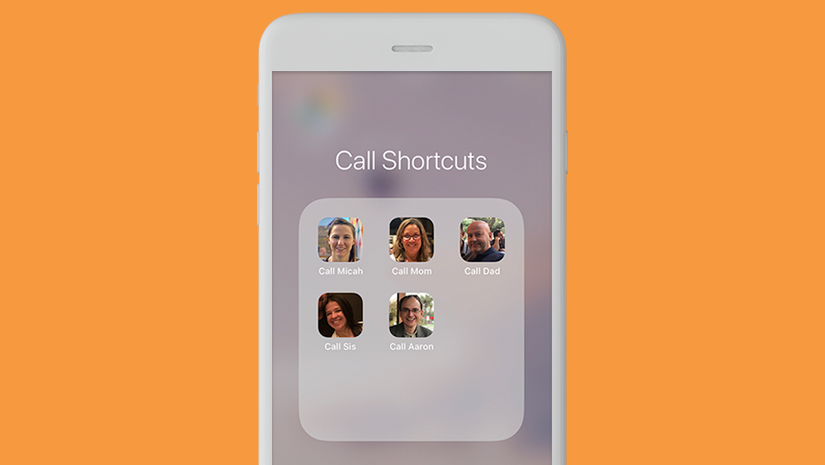
Apple now offers a native way to add speed dial to your iPhone home screen in 2 easy steps:
- 1) Create a Call shortcut using Apple’s native Shortcuts app.
- 2) Use “Add to Home Screen” to add the icon among your apps.
Read on for the more detailed, step-by-step instructions.
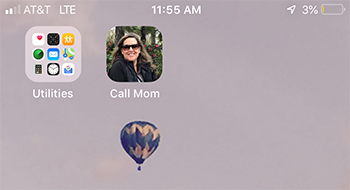
Using this method, you can place icons on your home screen displaying the faces of your top friends and family among your other apps, or in a designated folder. Tapping a particular icon will lead to triggering a phone call to that person, similar to the speed dial functionality on your old landline phone.
This iPhone speed dial trick is a good alternative to the Favorites section within the Phone app.
WATCH: How to Add Speed Dial Shortcuts to iPhone
1. First, if you haven’t downloaded the Shortcuts app, go get it in the App Store now.
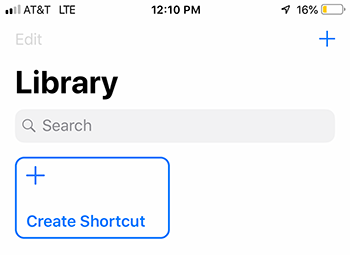
2. Once the app is installed, open it and tap Create Shortcut.
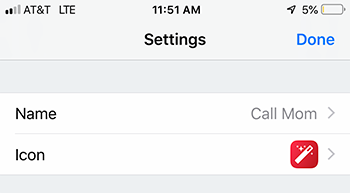
3. Tap the Settings button on the top right of the screen, and rename the shortcut to, for example, “Call Mom.” Tap Done.
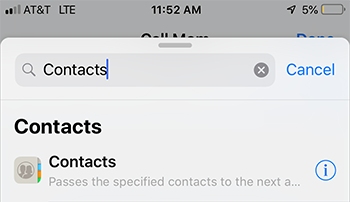
4. Tap the Search bar at the bottom, and type Contacts. Tap the option that comes up called Contacts, then press the + sign, which will bring up your entire list of contacts. Select the person that you are creating a shortcut to.
5. Then, you need to select the action you want the iPhone to perform on this contact. Therefore, you want to type ‘call’ in the search bar and select the corresponding Call option.
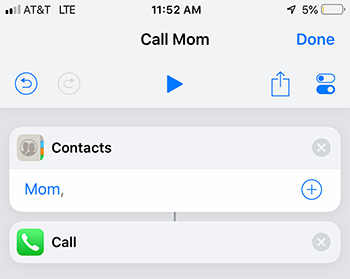
6. To add the shortcut to your home screen, tap the Share icon on the top right. Then, tap Add to Home Screen.
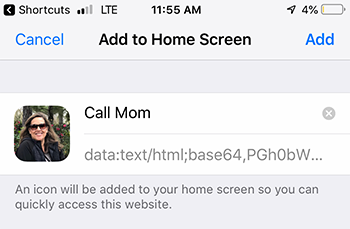
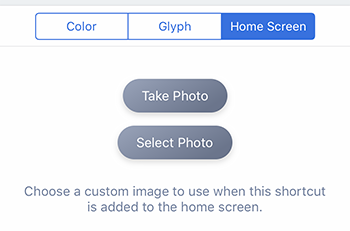
7. Now, you can choose a simple color for the icon, or choose a photo. I prefer to choose a photo of my contact for each icon. Tap Done.
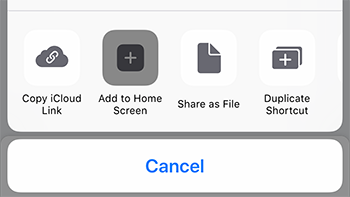
8. Apple will open the Safari browser, and you’ll need to tap Share, then Add to Home Screen one more time.
9. You will now have a the speed dial icon on your iPhone home screen, which you can tap to instantly call this person.
iPhone Speed Dial: Is it Speedy Enough?
Admittedly, the process of adding a speed dial shortcut to iPhone is a bit tedious.
And, there is a delay between tapping a Call Shortcut and the call actually launching, since tapping the icon prompts the iPhone to first open the Shortcuts app, then perform the action of the call, a process that takes about 5 seconds on my iPhone 7 Plus.
That said, having your friends and family’s faces in a folder on your home screen is a pretty cool alternative to simply listing them in Favorites within the Phone app. And seeing their faces in Call Shortcuts should remind you to stay in touch with your closest friends and family.
Whether it’s worth the work is your… call — pun certainly intended 🙂